
Free · Portable · Offline
PDF to Image for Windows 11
Convert PDF to JPG, PNG or TIFF on Windows 11 and Windows 10. PDF to Images Converter is a free, fast and offline tool that saves every page of a PDF as a high-quality image. No installation, no upload.
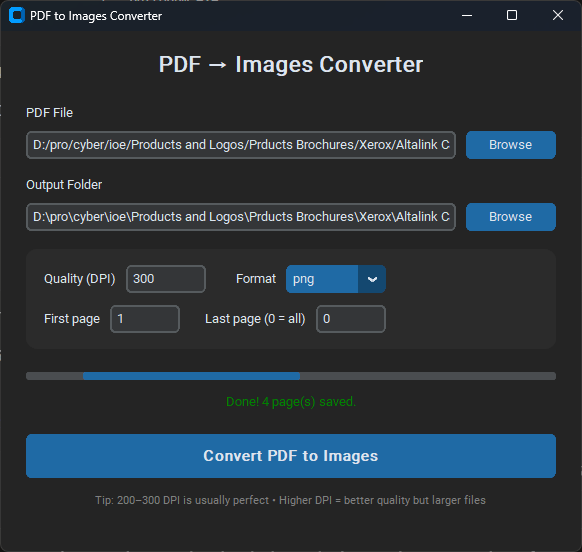
A free PDF to image converter that works offline
Need to turn a PDF into pictures? This portable Windows app converts each PDF page into a separate image file: PDF to PNG for sharp text, PDF to JPG for small files or PDF to TIFF for printing and archives. Choose the quality in DPI, convert all pages or only a page range, and find the images in a folder next to your PDF.
Because everything runs on your own computer, your documents are never uploaded to a website. It works without internet and without an account.
100% portable
This software is fully portable. No installation required.
- Just download, unzip and run the
.exefile - Works from any folder, USB drive or external hard disk
- Leaves no traces in the Windows registry
- No administrator rights needed
You can copy the entire folder to a USB stick and use it on any Windows computer.
System requirements
- Operating system: Windows 10 or Windows 11 (64-bit recommended)
- Memory (RAM): 2 GB minimum (4 GB or more recommended for large PDFs)
- Disk space: About 50–80 MB for the program, plus space for the images
- Display: 1280 × 720 or higher
- Other: No extra software or .NET framework required
Very large PDFs (hundreds of pages at high DPI) may need more RAM.
How to use
-
Download and open
Download the zip file, right-click it and choose Extract All. Open the extracted folder and double-click the
.exefile.If Windows shows “Windows protected your PC”, click More info and then Run anyway. This appears for new programs that Windows does not know yet.
-
Select the PDF file
Click the Browse button next to “PDF File” and choose the PDF you want to convert.
-
Choose the output folder
Click the second Browse button and select where the images should be saved.
The program suggests a folder named
YourPDF_pagesnext to the original file. -
Adjust the settings (optional)
- Quality (DPI):
200or300is recommended. Higher means better quality but larger files. - Format:
png(best quality),jpeg(smaller size) ortiff. - First / Last page: leave Last page at
0to convert all pages, or set a range such as 1 to 5.
- Quality (DPI):
-
Convert
Click “Convert PDF to Images”. A progress bar shows while it works.
-
Done
When it finishes, a success message appears and the output folder opens so you can see the images.
Useful tips
- For most documents, 200–300 DPI gives excellent quality.
- Use PNG when you need the highest quality, so text stays sharp.
- Use JPEG when you want smaller files, for example for photos.
- Convert only some pages by setting First page and Last page.
- The tool works completely offline. No internet is needed.
Frequently asked questions
Is PDF to Images Converter free?
Yes. It is free to download and use.
Are my PDF files uploaded to the internet?
No. The converter runs completely offline on your own Windows PC, so your documents never leave your computer.
How do I convert a PDF to JPG on Windows 11?
Open the converter, choose your PDF with Browse, pick an output folder, set Format to jpeg and click "Convert PDF to Images". Every page is saved as a separate JPG file.
Which image formats are supported?
PNG (best quality, sharp text), JPEG/JPG (smaller files) and TIFF.
Can I convert only some pages of a PDF?
Yes. Set First page and Last page, for example 1 to 5. Leave Last page at 0 to convert all pages.
Does it need installation or administrator rights?
No. It is a portable .exe: unzip it and run it from any folder or USB drive. It does not change the Windows registry.
Does it work on Windows 10?
Yes. It runs on Windows 10 and Windows 11 (64-bit recommended) and needs no .NET framework or other software.
Why does Windows say "Windows protected your PC"?
Windows SmartScreen shows this for new programs it does not know yet. Click "More info" and then "Run anyway".
Get PDF to Images Converter
Free to use. If it helped you, you can support future updates and new tools by visiting the support link.